Showing posts with label Unit Testing. Show all posts

Wednesday, July 22, 2009

Unit Tests : Not Runnable - VSTS 2008 SP1


I am sure most of us are facing this issue. After adding ordered unit tests to our project and creating a test list for these whenever we open the project the Tests are indicated as Not-Runnable.


This can be sorted by pressing the Refresh button in the Test View as below


Read this for more details

Tuesday, April 21, 2009

Use DataSource in Unit Test

I had a unit test in C#, written to test one of the functions of my service. Considering best practices of testing like Boundary Value testing, there were number of data input which I had to consider to completely test the function. For doing that one of the ways is, instead of writing different tests with different type of inputs, we can classify the test with respect to passing tests and failing tests.

I created a test for passing input values and another test in which the Test had an Expected Exception. In both the cases I had wide range of data input. For this I used a CSV file for getting the input data. So for in a particular test, all the data combinations mentioned in the CSV will be executed.
For using a Data Source in a test we will have to perform the following steps.


1. Go to the Properties of the Test (Press F4 after selecting the Test in TestView)
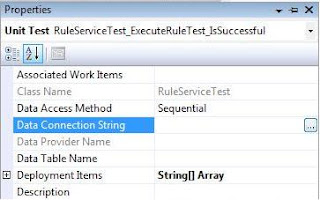

2. Select the Data Connection String button
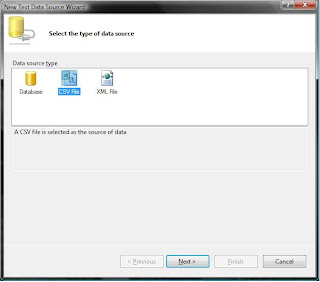
3. Then select the type of input file suitable to you (CSV or XML) In my case I used CSV


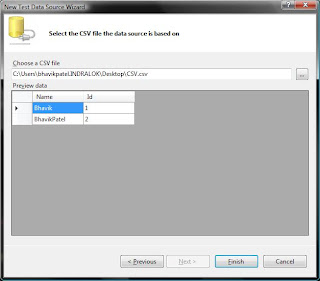
4. First Row of the CSV is automatically considered as header. (This needs to be taken care of while preparing the CSV)


5. Select Yes/No in the next dialog box if you wish to select this CSV to be added in deployment item and also get added to the solution. If you select Yes, the CSV will be added to the current project and also it will be added in the list of Deployment files in the LocaltestConfig.TestConfig file.


6. The Test will now look like

[DataSource("Microsoft.VisualStudio.TestTools.DataSource.CSV", "DataDirectory\\CSV.csv", "CSV#csv", DataAccessMethod.Sequential), DeploymentItem("Test\\QA\\UnitTestProjectName\\CSV.csv"), TestMethod]
public void TestUsingDataSource()
{
}
7. For using the data in the test you will have to write TestContext.DataRow["Name"]
Note: The name you mention here should be exact to the header name given in the CSV.
The retrieved data from CSV can be converted to string by
Convert.ToString(TestContext.DataRow["Name"]).Trim();
That’s it. The test will be using the CSV whenever it runs now. The important thing to remember is whenever you run the test once from the test view, it will have individual runs inside it which will depend on the number of rows of the CSV.

Wednesday, March 4, 2009

VSTS 2008 : Unit Testing - Keyboard Shortcuts

Normally I try to use keyboard shortcuts as much as possible. I believe that it saves time.
Here are some handy unit testing keybaord shortcuts with Visual Studio:
Run Mode
1. Ctrl + R, A – Run all tests
2. Ctrl + R, T – Run tests in context (based on if cursor is in function, class, or namespace)
3. Ctrl + R, F – Runs all tests that are checked in Test Results
Debug Mode:
1. Ctrl + R, Ctrl + A – Run all tests in debug mode
2. Ctrl + R, Ctrl + T – Run all tests in context in debug mode
3. Ctrl + R, Ctrl + F – Run all checked tests in debug mode

Enjoy Testing

Monday, February 9, 2009

Continuous Integration - Force a build to fail when unit tests fail and create work item


I had to setup continuous build on my TFS2008 machine which had to run a specific set of tests before it created a build (whenever anyone check’s in any code). I was pretty much successful doing that. The process was running smooth but whenever a test used to fail the build used to “Partially Fail” and also it didn’t create a “Bug” and assign it to the person who broke the build. A Bug was assigned to the person who broke the build only when the build used to “Fail”.
I did some RnD in this and figured out a way to force a build to fail whenever a test failed. I wrote the below line in the TFSBuild.proj file

< treattestfailureasbuildfailure > true < /treattestfailureasbuildfailure >
Adding this I thought, as I am forcing the test fail to be treated as a Build Failure, TFS will take care of raising a work item or Bug to the person but it didn’t.
Then I wrote a Target in the same file to create a work item on Test failure.


<UsingTask TaskName="Microsoft.TeamFounadtion.Build.Tasks.CreateNewWorkItem"

AssemblyFile="$(TeamBuildRefPath)\Microsoft.TeamFoundation.Build.Tasks.VersionControl.dll" />


<Target Name="AfterTest">

<!-- Refresh the build properties. -->

<GetBuildProperties TeamFoundationServerUrl="$(TeamFoundationServerUrl)"

BuildUri="$(BuildUri)"

Condition=" '$(IsDesktopBuild)' != 'true' ">

<Output TaskParameter="TestSuccess" PropertyName="TestSuccess" />

</GetBuildProperties>

<!-- Set CompilationStatus to Failed if TestSuccess is false. -->

<SetBuildProperties TeamFoundationServerUrl="$(TeamFoundationServerUrl)"

BuildUri="$(BuildUri)"

CompilationStatus="Failed"

Condition=" '$(IsDesktopBuild)' != 'true' and '$(TestSuccess)' != 'true' ">

</SetBuildProperties>

<CreateNewWorkItem

BuildNumber="$(BuildNumber)"

BuildURi="$(BuildURI)"

Description="The CreateNewWorkItem task created this bug."

TeamProject="$(TeamProject)"

TeamFoundationServerUrl="$(TeamFoundationServerUrl)"

Title="Unit Test Failure in $(BuildNumber)"

WorkItemFieldValues="$(WorkItemFieldValues)"

WorkItemType="$(WorkItemType)"

Condition=" '$(IsDesktopBuild)' != 'true' and '$(TestSuccess)' != 'true' ">

</CreateNewWorkItem>

</Target>

Tuesday, January 13, 2009

Reset Database after Unit Tests are run

I was doing RnD using VSTS 2008 for Unit tests. One of the issue I faced was the data used to get changed after my tests were passed. This scenario created one more need for me to find a method to rollback what ever changes my Unit tests used to make to my database.

I tried out MdbUnit, NUnit but I was still searching for something which is provided by Microsoft itself. Reading to few blogs I successfully made it work.

[TestInitialize]
public void Initialize()
{
ServiceConfig config = new ServiceConfig();
config.Transaction = TransactionOption.RequiresNew;
ServiceDomain.Enter(config);
}

[TestCleanup]
public void Cleanup()
{
if (ContextUtil.IsInTransaction)
{
ContextUtil.SetAbort();
}
ServiceDomain.Leave();
}

After I wrote this in my Test.cs file I faced another error
system.Data.Entity Exception: The underlying provider failed on Open. ---> System.Transactions.TransactionManagerCommunicationException: Network access for Distributed Transaction Manager (MSDTC) has been disabled.

The following link helped me

http://social.msdn.microsoft.com/Forums/en-US/windowstransactionsprogramming/thread/993b1b87-b9c0-4070-938b-8539fcb059f6/

Wallah my Unit test problem is solved!